




The blank page is the real obstacle
You open Subsplash Workflows, ready to build a follow-up process for first-time donors. The board is empty. You know roughly what needs to happen: a thank-you email, a resource packet, maybe a check-in a month later. But turning that into columns, tasks, and due dates takes time you don’t have between service planning, sermon slides, and the six other things on your list today.
That blank canvas is where most people stall out. The idea itself is usually clear enough. It’s turning that idea into an effective workflow from scratch that eats the time you don’t have.
Describe it & the AI Workflow Generator builds it
We built the AI Workflow Generator to ensure nobody gets stuck with a blank canvas. Instead of building a workflow piece by piece, you describe the outcome you want, and the AI drafts the whole thing: a title, a description, sequential steps, task checklists, and suggested due dates.
You’re not locked into whatever it generates. Once the draft appears, you can reorder steps, edit tasks, change colors, or adjust deadlines until it matches how your church teams operate.
How it works, step by step
Here’s the full path from empty board to finished workflow:
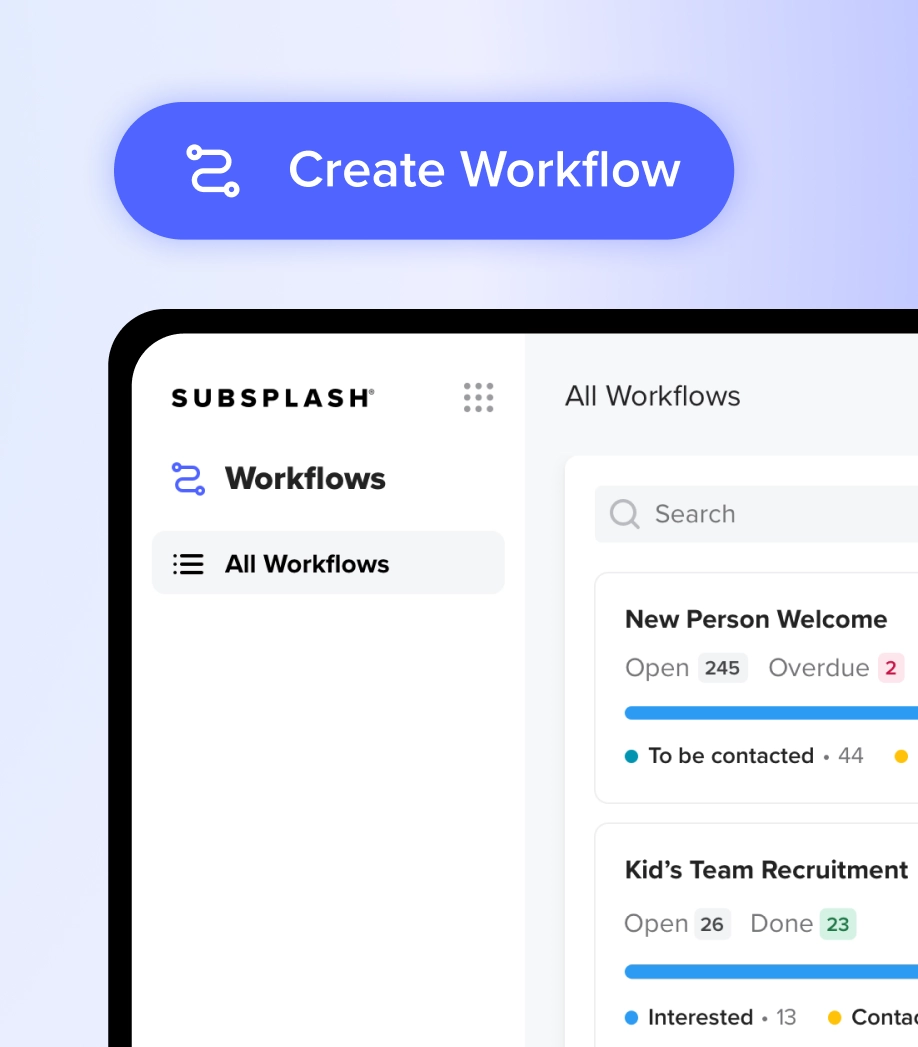
- Navigate to the Create Workflow screen in your Subsplash Dashboard.
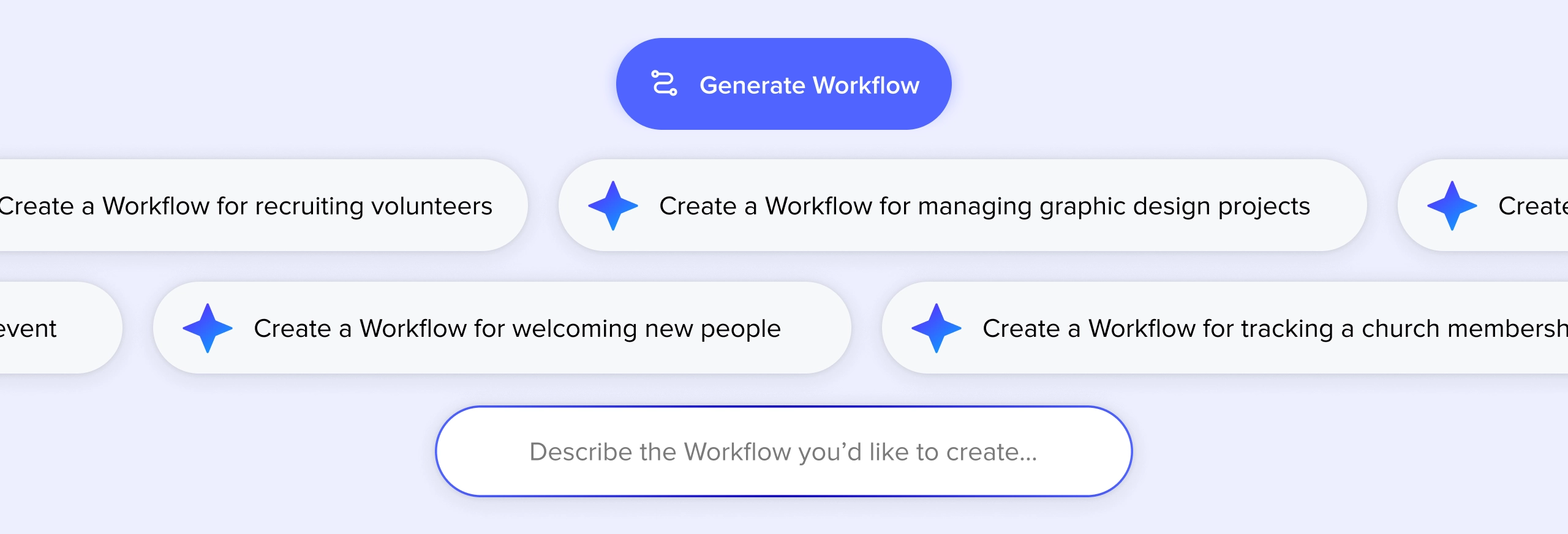
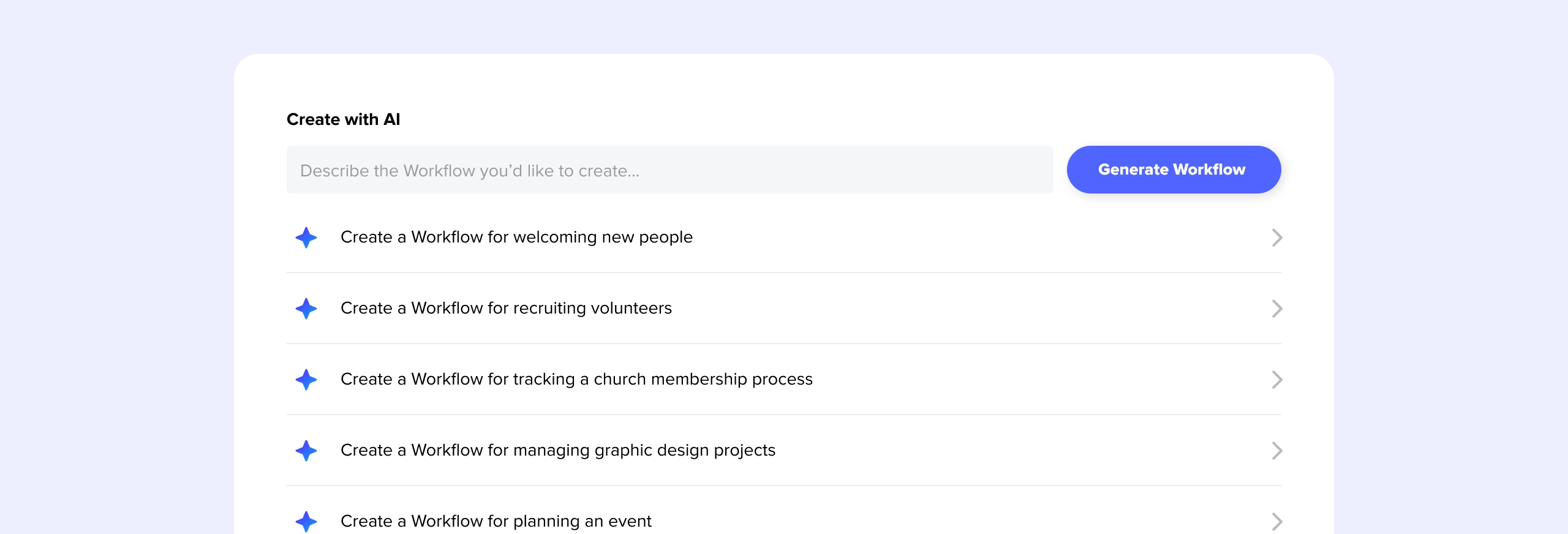
- Scroll past the manual setup options to the “Create with AI” section.
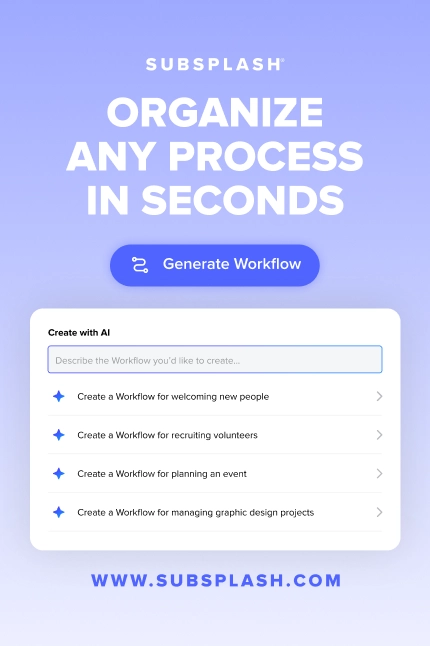
- Prompt it with a short, natural-language description of the process you want, or choose from the pre-set examples.
- Generate a complete draft in seconds.
- Customize anything you’d like to change before you put it to work.
What you’ll build in seconds
The AI replaces your blank canvas with a fully populated, Kanban-style board that’s ready to use right away. Each stage of your process becomes its own action-oriented column, like Initial Outreach or Ready for Interview, so you can see the whole flow at a glance.
Inside each column, a checklist tracks exactly what needs to happen before a card moves forward. Due dates are relative rather than fixed, like “3 days after the card enters this step,” so your timeline adjusts to when the work actually starts. Color coding ties it all together, making the entire board scannable in a few seconds.
Prompting like a pro
A good rule of thumb is a better prompt gets you a better draft on the first try. Keep these two habits in mind.
Copy your prompt to your clipboard before you hit generate. If the first draft isn’t quite right, delete it, paste your original prompt back in, adjust a few words, and try again.
Be specific. “Volunteer onboarding” gives the AI very little to work with. “Volunteer onboarding for kids ministry, including background checks and training” gives it enough detail to build checklists that actually match your process.
Prompts you can use today
Subsplash Workflows handles both people-based follow-up and project-based planning, which sets it apart from tools built for lists alone. Here are three prompts for each of these categories to get you started.
For following up with people:
- A follow-up process for a first-time donor that includes an initial thank-you email, sending a resource packet, and a 30-day pastoral check-in.
- A prayer request follow-up flow that routes the request to our prayer team, adds it to the internal weekly agenda, and assigns a follow-up call for long-term care.
- A multi-step youth ministry volunteer onboarding track that covers the initial interest form, background check verification, a face-to-face interview, and final shadow training.
For managing projects:
- A creative request pipeline for Sunday announcements that tracks a project from the initial intake form, through graphic design drafts, pastoral review, video production, and final approval.
- An event planning checklist for our annual Fall Festival, breaking down building permits, volunteer team assignments, stage setup, vendor coordination, and post-event cleanup.
- A facility maintenance and room reservation request workflow that handles availability checks, calendar logging, tech team setup instructions, and facility lock-up.
Try it on your next process
The next time you need to build a process and don’t know where to start, open your Subsplash Dashboard and describe what you need. Let the AI draft it, then adjust from there until it fits how your team works.
Want to go deeper? Workflows is available for all Subsplash One clients at no extra cost. Check out the step-by-step guide in the Subsplash Workflows support article.
Not using Subsplash One yet? [.blog-contact-cta]Talk with our team[.blog-contact-cta] to see how Workflows can help your team!